Microsoft 365 & Productivity
The OneDrive Digital Filing System
A restrained file structure for documents that are easy to save, retrieve and share.
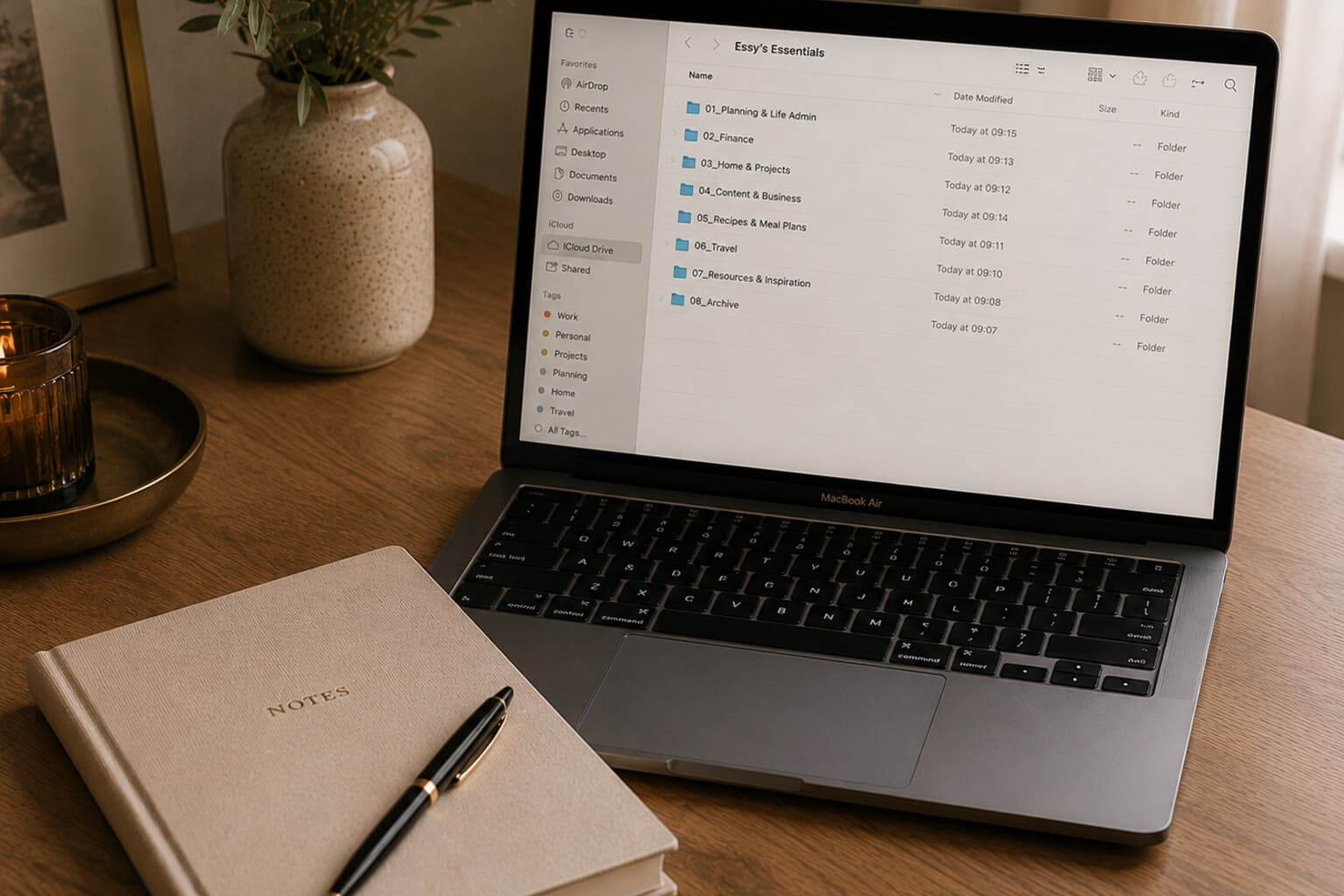
Digital filing often becomes complicated because folders are created in response to individual files rather than according to one consistent structure.
The result is a collection of overlapping locations: Documents, Important documents, New documents, Personal, Personal administration, Archive, Old archive.
OneDrive allows files and folders to be stored, organised, synchronised and shared. It also supports the management of access and permissions.
A calm filing system uses fewer top-level folders and consistent naming.
File-Naming Standard
Use names that remain understandable outside the folder. Suggested format: "YYYY-MM-DD_Subject_DocumentType_Status" - for example "2026-07-17_HomeInsurance_RenewalNotice," "2026-08-01_AutumnProject_ContentBrief_v01," "2026-08-04_AutumnProject_ContentBrief_APPROVED," "2026_AnnualExpenses_Overview."
Avoid names such as "Scan 1," "Document new," "Untitled," "Screenshot" or "Final final."
Version Control
For working files, use v01, v02, v03. For approved files, use APPROVED. For replaced files, move the previous version to an Archive or Previous Versions folder.
Do not keep several competing files in the main working location.
Sharing Principles
Before sharing, decide: does the recipient need to view or edit? Should access be limited to named people? Does the entire folder need to be shared? When should access end? Does the file contain information that should not be shared through this method?
OneDrive sharing settings can distinguish between different recipients and permissions, depending on account type and organisational policy.
Suggested Top-Level Structure
00 Inbox
- Use this for newly downloaded or unsorted files.
- Empty it weekly.
- Nothing should live here permanently.
01 Current
- Use this for active projects and documents currently requiring attention.
- Create one folder per project.
- When a project is complete, move it to the appropriate permanent folder or archive.
02 Home
- Property or rental
- Utilities
- Insurance
- Maintenance
- Appliances and warranties
- Interior
- Garden
- Suppliers
03 Financial Administration
- Annual overview, invoices, taxes, insurance, major purchases, reimbursements, budgets.
- Store financial information only in an environment and configuration appropriate for its sensitivity, with strong account security and appropriate access controls.
04 Personal
- Education
- Career
- Memberships
- Personal projects
- Certificates
- Correspondence
05 Travel
- Future trips, bookings, itineraries, travel documents, past trips.
- Avoid leaving identity documents in broadly shared folders.
06 Creative Projects
- Briefs
- Research
- Photography
- Copy
- Working files
- Final exports
- Archive
07 Reference
- Templates, guides, manuals, brand resources, reading.
- Do not use Reference as a place for every file you are reluctant to delete.
08 Shared
- Use this for files intentionally shared with other people.
- Review access periodically and remove it when collaboration has ended.
09 Archive
- Organise completed material by year or main subject.
- For information that must or should be retained but is no longer active - it should not compete with current work.
Small Next Steps
- Empty Downloads and the OneDrive Inbox.
- Rename unclear files.
- Move current files to their correct location.
- Archive completed projects.
- Delete unnecessary duplicates.
- Review shared access.
- Check whether important folders are syncing as expected.
Pair It With
Frequently Asked Questions
What is a good file-naming standard for OneDrive?
"YYYY-MM-DD_Subject_DocumentType_Status" - for example "2026-07-17_HomeInsurance_RenewalNotice." Avoid vague names like "Scan 1," "Document new," "Untitled" or "Final final."
What top-level folder structure works well in OneDrive?
A restrained set: 00 Inbox (unsorted, emptied weekly), 01 Current (active projects), then dedicated folders per life area such as Home, Financial Administration, Personal, Travel, Reference and Shared, ending with 09 Archive for completed material organised by year or subject.
How should I handle different versions of the same file?
Use v01, v02, v03 for working files, mark finished ones APPROVED, and move the previous version to an Archive or Previous Versions folder rather than keeping several competing files in the main working location.
How often should I reset the filing system?
Monthly: empty Downloads and the OneDrive Inbox, rename unclear files, move current files to their correct location, archive completed projects, delete duplicates and review shared access.
A useful filing system does not require you to remember the exact location of every file.
It gives you a small number of logical places to look.
A Note on This Content
The content on Essy’s Essentials is intended for general inspiration, personal organisation and educational purposes. It does not constitute personal financial, investment, tax or legal advice. Always consider your own circumstances and seek qualified advice where appropriate. Any amounts shown are illustrative examples only, never a recommendation for what you personally should save or spend.

Written by Esther
Esther is a photographer and storyteller, and the founder of Essy's Essentials - a seasonal home for stories, rituals, recipes and everyday luxuries.
More about Esther →